Settings & Personalization
SKUMan keeps two kinds of configuration in separate places. Settings holds the choices that affect only you — how the app looks and what appears on product cards. This page also gathers up your personal saved presets — filters, sorts, and card layouts — which you mostly create as you work in the catalogue. Admin Setup holds workspace-wide configuration that administrators manage for everyone. This page walks through both.
Application Settings
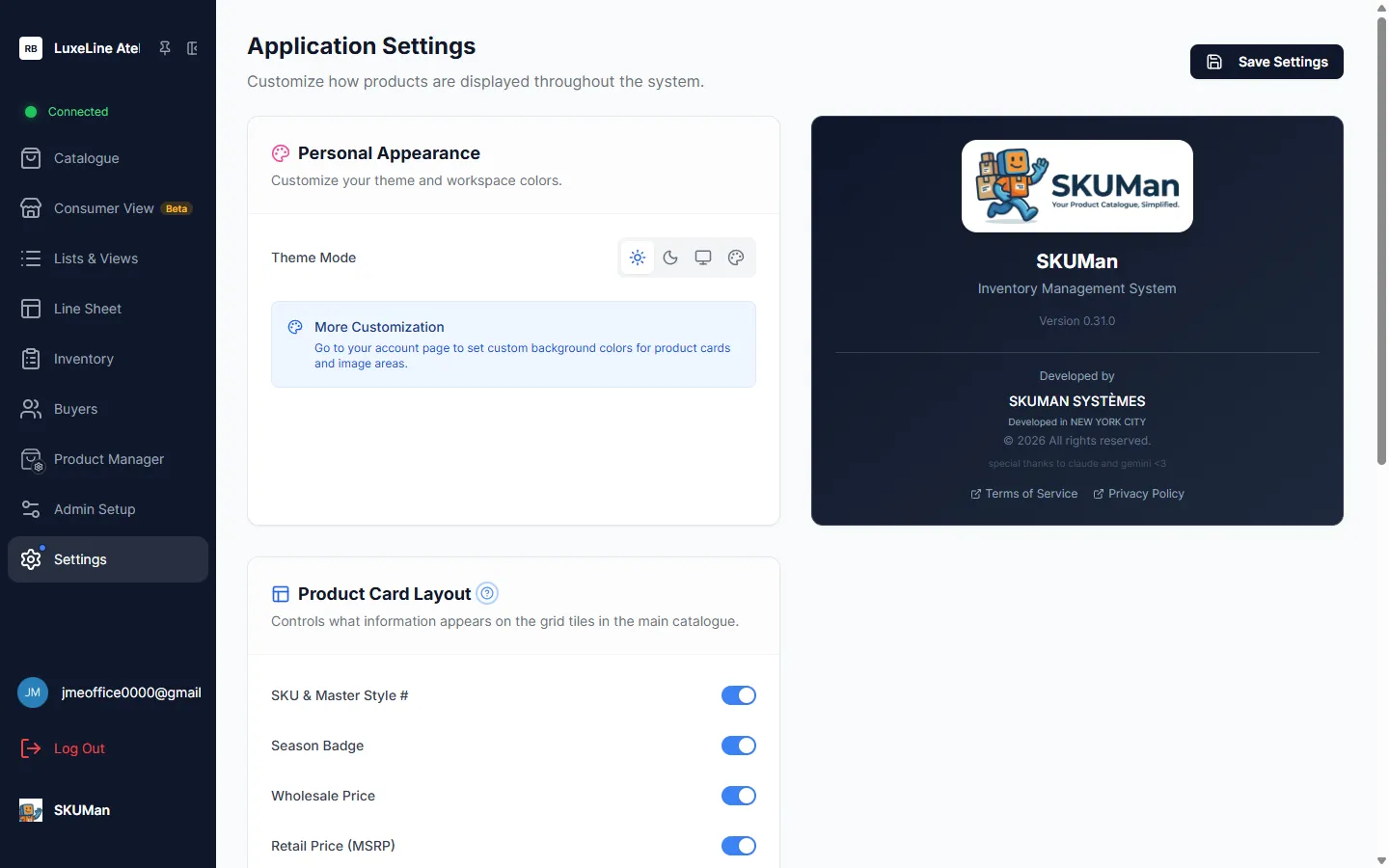
Section titled “Application Settings”Open Settings from the sidebar to reach the Application Settings page. Everyone can change these — they apply to your account only, not to your teammates. Use the Save Settings button at the top right to keep your changes.
Personal Appearance
Section titled “Personal Appearance”The Theme Mode selector switches the whole app between a light theme, a dark theme, or matching your operating system’s setting. Pick whichever is easiest on your eyes; the change takes effect immediately.
A More Customization note here points you to your account page (see My Account below), where you can set custom background colors for product cards and image areas.
Product Card Layout
Section titled “Product Card Layout”These toggles control what information appears on the grid tiles in the main Catalogue. Turn each field on to show it on the card, off to hide it:
| Toggle | Shows on the card |
|---|---|
| SKU & Master Style # | The product’s SKU and its parent (master) style number |
| Season Badge | A small badge with the product’s season |
| Wholesale Price | The wholesale (trade) price |
| Retail Price (MSRP) | The suggested retail price |
This affects the default cards in the main catalogue only. If your admin has built a designed card layout, or you’ve chosen your own, the designed layout takes over instead — see the Card Layout button in the Catalogue.
My Account
Section titled “My Account”You reach your account page from Settings → My Account. It holds a few more personal preferences that don’t fit on the main Application Settings page.
- Cascading filters — By default, each catalogue filter section only offers values that exist within your current results, and every option shows a live count. Turn this off here if you’d rather see the full list of options at all times. See The Catalogue for how the filters behave.
- Premium Look — An optional animated visual style that adds motion and polish across the app. It’s off by default; switch it on to opt in. A reduce motion sub-toggle tones the animations down (it starts from your device’s reduced-motion preference), and your admin can enable or disable Premium Look for the whole workspace.
- Custom background colors — Set your own background colors for product cards and image areas, so imagery sits on the backdrop you prefer.
- Consumer View menu lock — Set and manage the 4-digit PIN that locks the Consumer View storefront for unattended kiosk displays, including the auto-lock and change-PIN options. See Consumer View for how locking and unlocking works day to day.
Your personal layouts, filters, and sorts
Section titled “Your personal layouts, filters, and sorts”Several parts of SKUMan let you save your own reusable presets. They’re personal to you unless you deliberately share them.
- Personal modal layouts — The product detail panel is layout-driven, and you can pick your own arrangement of its sections from Settings → Modal Layouts. Your admin sets a company-wide default (below); a personal layout overrides it just for you. See The Product Detail View.
- Saved filters — Save a filter combination from the bookmark icon at the top of the catalogue filter sidebar and reuse it in one click. See The Catalogue.
- Saved sorts — Save a grouping-and-sort setup as a named preset from the sort menu. See Sorting, Grouping & Selection.
- Saved card layouts — Design and save your own catalogue card layouts (or use a shared one) from the Card Layout button in the catalogue.
Admin Setup
Section titled “Admin Setup”Admin Setup is where administrators configure the whole workspace. Open it from the sidebar — it appears only if you have the Admin role, since these settings apply to every user. Inside, it’s organized into tabs across the top of the page.
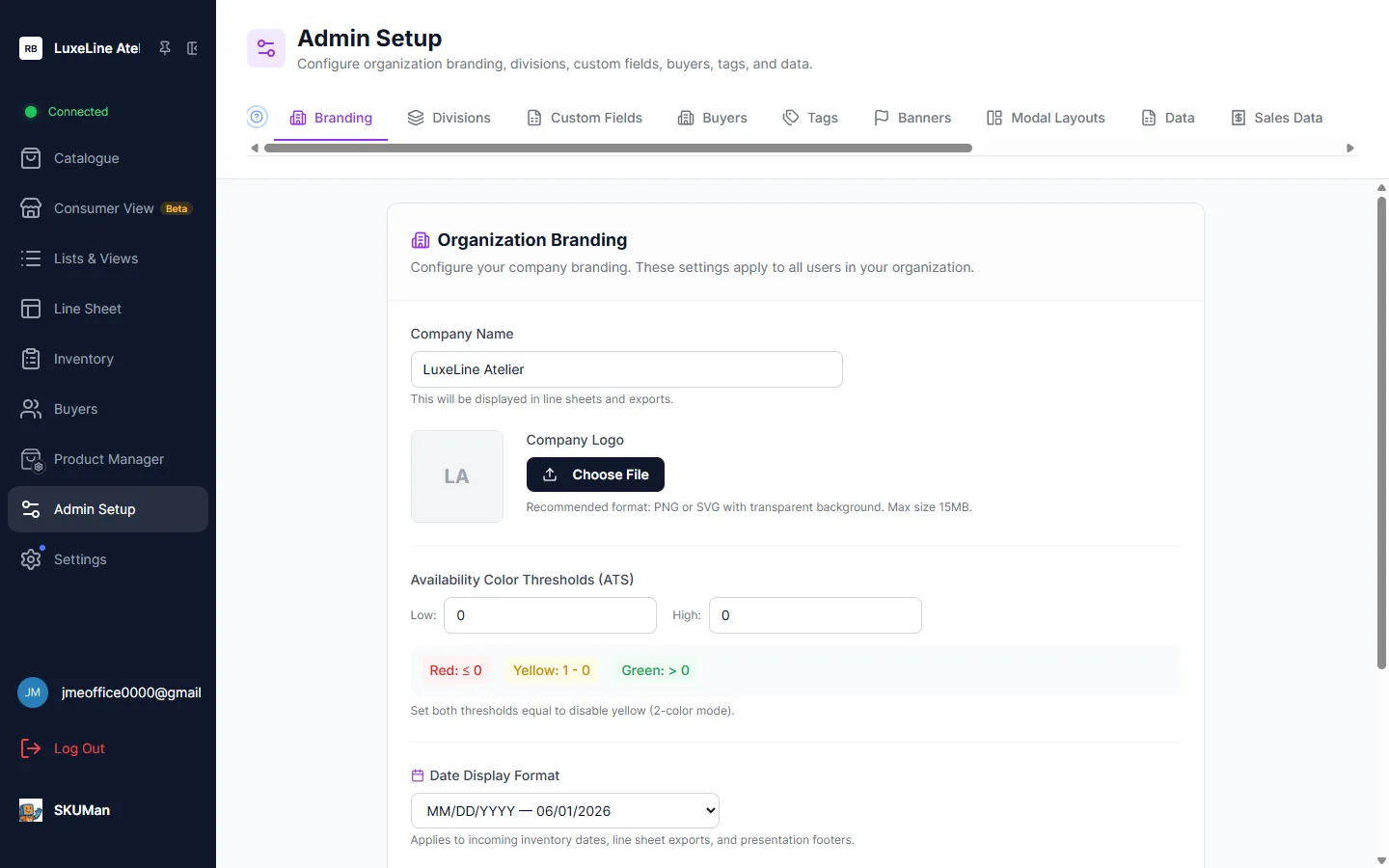
- Branding — Set your company name and logo (used on line sheets and exports), the availability color thresholds that color the available-to-sell (ATS) figures shown on products, and the date display format used across the app.
- Product custom fields — Create and manage the extra fields you attach to products. See Custom Fields for the full walkthrough.
- Built-in field names — Rename the on-screen labels of SKUMan’s built-in fields — for example show “Wholesale Price” as “Trade Price.” This changes only what’s displayed; it never changes field names in the API, imports, or machine-readable exports.
- Hot-edit toggles and quick-pick chips — Enable in-place “hot editing” for a chosen product custom field (with an optional note for your team). You can also curate the quick-pick value chips shown in the Hot edit dialog, which is reached by right-clicking products in the catalogue.
- Import mappings — Save how your source spreadsheet columns map to SKUMan fields, so repeat imports match up automatically. See Importing & Exporting Data.
- Sales data — Review customer names from your sales imports that didn’t automatically match a company in your directory, map each one to the right company, and Re-link to apply the mapping across your imported sales records. See Inventory & Planning and Buyers.
- Modal layouts (company-wide) — Set the default product-detail layout that everyone sees, unless they’ve chosen their own personal layout. See The Product Detail View.
- Integrations & API keys — Manage the keys and external connections used to sync data into and out of SKUMan. See the API Reference for how those integrations work.
- Storefront editor — Design the Consumer View storefront — its home page, navigation, groups, cards, and theme.
Admin Setup also has its own Divisions, Tags, and Banners tabs for the workspace lists that organize and label your products — divisions are your product categories, and tags and banners are the labels covered in The Product Detail View. Open each tab to manage them.