
Getting Started
SKUMan is a product catalogue, list-building, and inventory-planning workspace for wholesale teams. This page gets you signed in, oriented in the interface, and pointed at the right part of the guide. If you’re integrating an external system rather than using the app, see the API Reference instead.
Signing in
Section titled “Signing in”Open your company’s SKUMan address (for example https://your-company.sku-man.com) and click Access Portal. You’ll be taken to the secure login page:
- Enter your email address.
- Enter your password.
- Select the sign-in button.
SKUMan then loads your company’s workspace.
Your account is created by your SKUMan administrator, not by signing up yourself. If you don’t have login details, ask your administrator for an invite. If you’ve forgotten your password, use the recovery option on the login page.
Everyone at your company shares one workspace, but you only see the products, lists, and views that apply to you and that have been shared with you. Nothing you do is visible to other companies.
Finding your way around
Section titled “Finding your way around”The dark sidebar down the left edge is the main navigation. By default it shows icons only, to keep your screen clear. To read the labels:
- Hover over the sidebar and it expands to show the name next to each icon.
- Use the pin button at the top to lock it open so it stays expanded while you work.
Each icon takes you to a module — a major area of the app. Click one to switch to it.
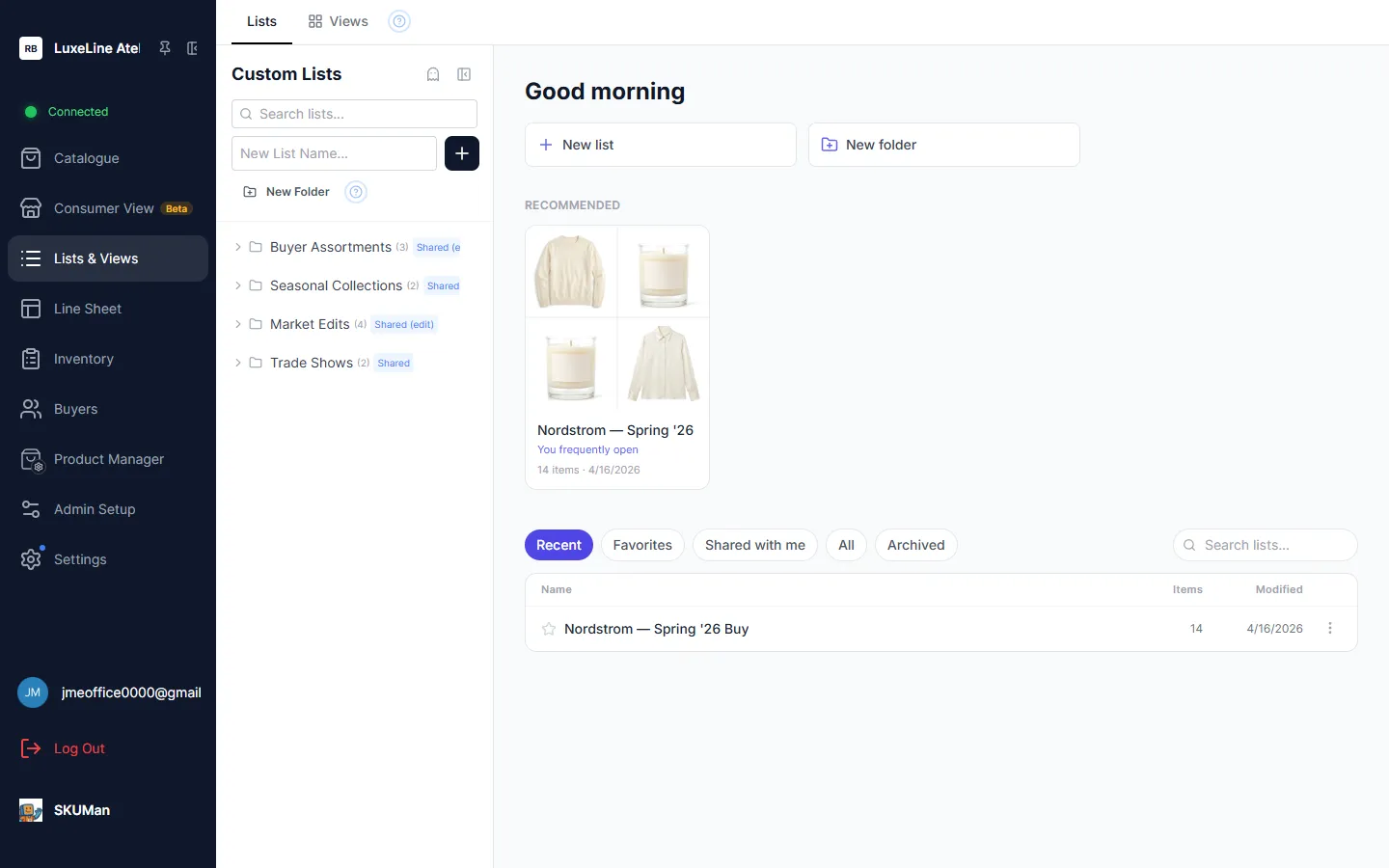
The modules
Section titled “The modules”| Module | What it’s for | Learn more |
|---|---|---|
| Catalogue | Browse, search, and filter every product in your workspace | The Catalogue |
| Consumer View | A retail-style storefront presentation of your catalogue | Consumer View |
| Lists & Views | Build, organize, and share curated product lists | Lists & Views |
| Line Sheet | Turn a list or selection into a polished PDF, PowerPoint, or Excel line sheet | Line Sheets |
| Inventory | Stock levels, incoming orders, best-seller status, and sales analytics | Inventory & Planning |
| Buyers | Your customer companies and their buyer contacts | Buyers |
| Product Manager | Import products, upload images, and manage product data (admins) | Importing & Exporting Data |
| Admin Setup | Custom fields, import mappings, and workspace configuration (admins) | Custom Fields |
| Settings | Your personal preferences — appearance, defaults, and account options | Settings & Personalization |
A Super Admin can turn modules on or off for the whole workspace, so you may not see every entry listed above. Admin-only modules like Product Manager and Admin Setup appear only if you have the Admin role.
The Connected indicator
Section titled “The Connected indicator”SKUMan keeps your session in sync with your teammates in real time. Look for the green Connected dot in the sidebar: while it’s lit, live sync is active, and changes made by other people in your company — a new product, an edited price, a list someone shared with you — appear in your session automatically, without refreshing the page.
A red, pulsing Connecting… dot means SKUMan is (re)establishing the live connection — your work still saves normally, and the dot turns green again on its own. A gray Sync off dot means live sync is turned off for your workspace; refresh the page to see teammates’ changes.
If two people edit the same product at once, SKUMan keeps the most recent change and shows you what changed, so nothing is silently overwritten.
Your role and what you can do
Section titled “Your role and what you can do”What you’re allowed to do depends on the role your administrator assigned to your account. Roles build on each other — each level can do everything the level below it can, plus more.
| Role | What it can do |
|---|---|
| Viewer | Read-only. Browse, search, and filter the catalogue; open lists, line sheets, and other views shared with you; and export and download. You can personalize your own workspace (theme, favorites, sidebar organization) and set a Consumer View lock, but you can’t change shared data. |
| User | Everything a Viewer can, plus editing values: filling in custom-field values on lists, creating and managing your own lists, and adding products to lists. |
| Admin | Full data management: importing products and sales data, uploading images, bulk edits, defining custom fields, designing shared card layouts and line-sheet presets, and configuring the workspace in Admin Setup. |
| Super Admin | Everything an Admin can, plus workspace-wide controls: turning modules on or off, managing every list in the workspace regardless of who owns it, and other workspace-level settings. |
Throughout this guide, features limited to certain roles are marked — for example “(admins only)”. If a control is greyed out or missing for you, it’s usually because your role doesn’t include it; your administrator can adjust your role if you need more access.
Getting help in the app
Section titled “Getting help in the app”Look for the small ? bubbles throughout the interface. Most toolbars, panels, and dialogs have one, and hovering or clicking it explains the controls right where you are — so you rarely need to leave what you’re doing to find an answer.
How this guide is organized
Section titled “How this guide is organized”The rest of the guide covers every part of SKUMan in depth. Here’s the map:
Browsing products
- The Catalogue — searching, filtering, and the grid and list displays.
- Sorting, Grouping & Selection — ordering products, grouping them, and selecting many at once.
- The Product Detail View — everything on a single product’s page.
Lists and collaboration
- Lists & Views — building and organizing curated product lists.
- Sharing & List Tools — sharing lists with teammates and the tools inside an open list.
- Custom Fields — adding your own fields to products and lists.
- SKU Views — building matrices of which products belong to which views.
Presenting and selling
- Line Sheets — turning a list into a polished PDF, PowerPoint, or Excel document.
- Consumer View — a retail-style storefront presentation.
Planning and customers
- Inventory & Planning — stock, incoming orders, best sellers, and analytics.
- Buyers — your customer companies and their contacts.
Data and setup
- Importing & Exporting Data — getting products and data in and out.
- Settings & Personalization — your preferences and workspace configuration.