
Importing & Exporting Data
The Product Manager is where administrators load and maintain the product data behind your whole workspace. From here you import products from a spreadsheet, upload product images in bulk, export your catalogue, and — when you need a clean slate — delete everything and start over.
Product Manager is an admin-only module. If you don’t see it in the sidebar, your role doesn’t include it, or your administrator has turned it off. (See roles.)
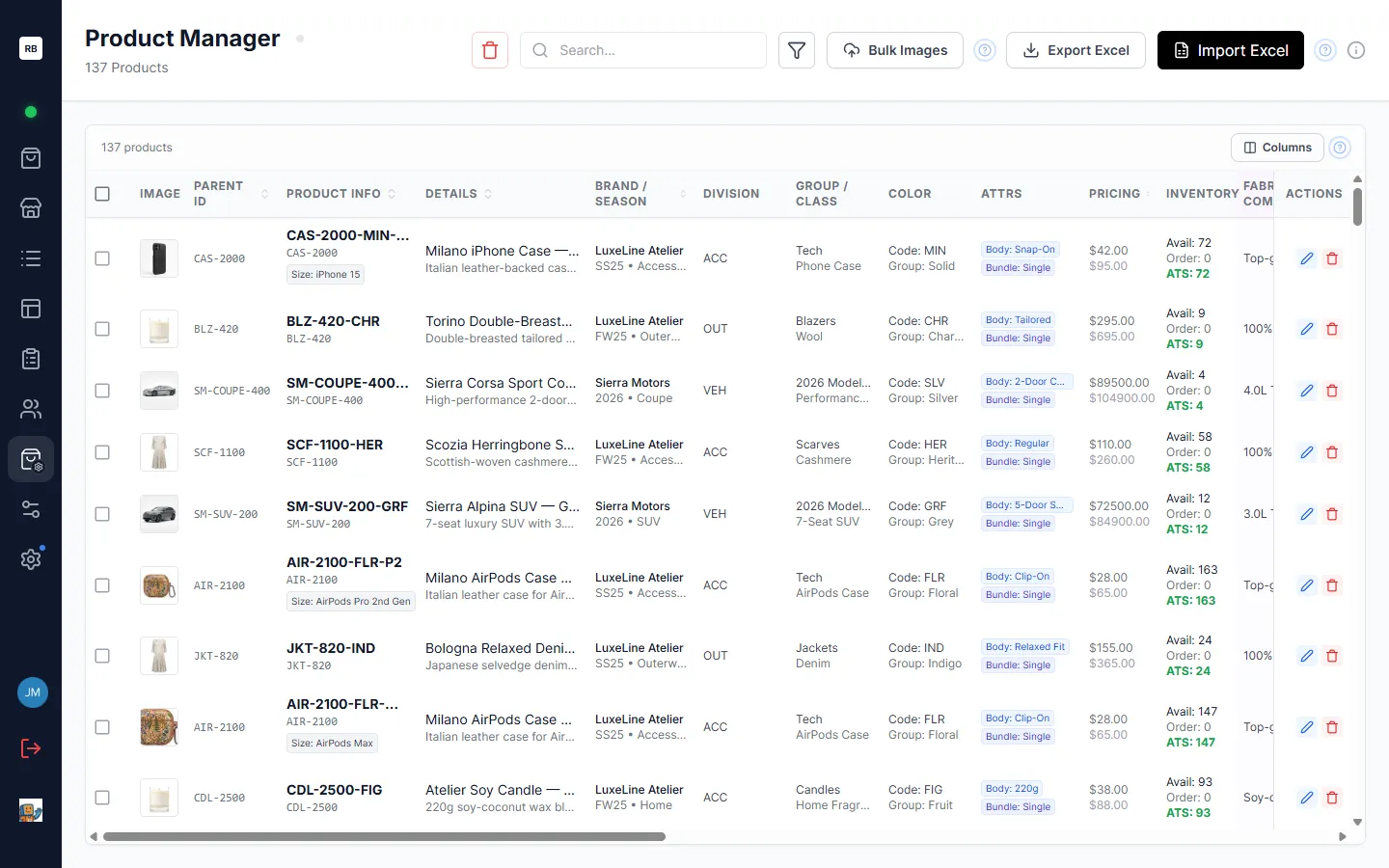
The product data table
Section titled “The product data table”The main area is a wide, scrollable table listing every product in your workspace — one row per individual item. The header shows the total product count and, when you’ve selected rows, how many are selected.
Each row shows the product’s key data across columns: image thumbnail, style ID, product info (SKU and name), details, brand and season, division, group and class, color, attributes, pricing, inventory, and when it was added, last updated, and by whom. An Actions column at the end lets you edit or delete that single product.
You have several ways to work with the table:
- Search — type in the search box to filter the table to matching products as you type.
- Toggle filters — the filter (funnel) icon in the toolbar opens a filter panel so you can narrow the table by brand, season, and other attributes, the same way you would in the catalogue.
- Choose columns — the Columns button above the table opens a Show/Hide Columns menu where you can turn individual columns on or off, so you can focus on just the data you’re working with.
- Sort — click a column header to sort by that column; click again to reverse the direction.
- Edit a single product — use the edit action on a row to open that product and change its fields directly.
- Delete a single product — use the delete action on a row to remove just that product (you’ll be asked to confirm).
Importing products from Excel
Section titled “Importing products from Excel”To load or update products, click Import Excel in the toolbar and choose a file. SKUMan accepts .xlsx, .xls, and .csv files.
Recognized column headers
Section titled “Recognized column headers”SKUMan reads your spreadsheet by matching each column’s heading to a known product field. Matching is case-insensitive, and each field accepts several common spellings, so you usually don’t need to rename anything before importing. These are the core fields and the headings that map to them:
| Product field | Column headings SKUMan recognizes |
|---|---|
| Style ID (the master style that groups a product’s colours under one parent) | item id, itemid, webitemid, web item id, variant id, parent id |
| SKU | sku, style |
| Name | name, product name, title |
| Wholesale price | price, wholesale |
| Retail price (MSRP) | retail, retail price, msrp |
| Color code | color code, color |
| Size | size, sizes, product size |
| Brand | brand, vendor, manufacturer |
| Season | season, year |
Watch the two style headings: a column headed style maps to SKU, not to Style ID — use item id or webitemid for the master style.
SKUMan recognizes more columns beyond these core fields — including category, group, class, body/fit, color group, availability, description, image path, and buyer, plus any product custom fields you’ve enabled. Hover the information icon next to Import Excel in the toolbar to see the full list of recognized headings for your workspace.
If some of your columns don’t match automatically, SKUMan opens a mapping step where you can point each unmatched spreadsheet column at the right product field before continuing.
How rows are matched to existing products
Section titled “How rows are matched to existing products”For every row in your file, SKUMan decides whether it’s a brand-new product or an update to one you already have. It looks for a match in this order:
- By system ID — SKUMan’s own product identifier, which appears as an
idcolumn in files you export from SKUMan. If you’re re-importing an exported file, a matchingidwins. It’s separate from the Style ID above, and files you build yourself usually won’t have it — so matching normally falls to the SKU rules below. - By SKU and color code together — the SKU combined with the color code.
- By SKU alone.
The first match found is used. A row that matches nothing existing is imported as a new product.
Resolving conflicts
Section titled “Resolving conflicts”When an imported row matches a product you already have and the data differs, SKUMan doesn’t overwrite it silently. It collects those cases and shows an Import Conflicts Detected dialog listing each one, with the existing values on the left and the fields that would change highlighted.
For each conflict you choose:
- Overwrite — replace the existing product with the incoming data.
- Keep Existing — leave the current product untouched and ignore the incoming row.
Use the per-row checkbox to mark individual products to overwrite, or the Overwrite All / Keep All Existing buttons to set every conflict at once. When you’re happy, click Confirm Selection to apply the import with your choices. Brand-new products (no conflict) are always imported.
Large imports
Section titled “Large imports”A single import can handle large files — up to 50,000 rows at once — so you can load an entire catalogue in one go. Very large files take a little longer to process; a progress indicator keeps you informed while SKUMan reads, matches, and saves the rows.
Exporting the product data table
Section titled “Exporting the product data table”Click Export Excel in the Product Manager toolbar to download your product data as a spreadsheet. This is the plain round-trip export: one row per product, a column for every product field — core fields plus your enabled custom product fields — using headings that SKUMan recognizes on import. That means you can export, edit values in Excel, and re-import the same file to push your changes back in, without renaming columns.
It is deliberately unstyled and unfiltered. When you want a spreadsheet to send to someone — a price list, an order form, a size breakdown — use Excel Studio instead.
Excel Studio
Section titled “Excel Studio”Excel Studio designs the spreadsheet before it is written. You choose the columns, how rows are grouped, which numbers get totalled, and what the workbook looks like, and a live preview shows the finished sheet as you work. Nothing downloads until you click Export.
It isn’t part of Product Manager, and it isn’t admin-only. You reach it from wherever the products you want already are:
- From a list — open a list and click Export Inventory in the list toolbar. The list’s per-list custom fields are available as columns.
- From the catalogue — select products in the catalogue, then choose Export to Excel… from the Actions menu that appears in the catalogue toolbar while products are selected (or right-click the selection). To take everything your filters currently show, click Select All in the catalogue toolbar first.
Inside the builder:
- Columns — add any field as a column and drag to reorder: core product fields, custom product fields, per-list fields, buyer sales history, product images, and image URLs. Each column carries its own width, alignment, number format, and decimal places. Hide a column to keep it in the file but out of sight.
- Grouping — group rows by any field, then optionally by a second field, with a header bar per group. Groups can go down the page as banded sections, or each group onto its own worksheet with a colour-coded tab.
- Totals — pick which columns get a per-group subtotal and a grand total, and whether each one sums, averages, counts, or takes the minimum or maximum.
- Calculated columns — a column whose value is a formula over your other columns: margin %, markup %, extended value (quantity × price), a difference, a ratio, or your own expression. These are written as real Excel formulas, so they recalculate when the recipient edits the sheet.
- Order-form columns — add an empty quantity column for your customer to fill in, with optional validation (whole numbers only, or a dropdown of allowed values). Turn on sheet protection and every cell locks except those quantity columns, so an order comes back with your data intact.
- Extra sheets — a cover page (title, date, product counts, and a clickable table of contents), a summary sheet rolling every group up, and a size-matrix sheet pivoting sizes across the top with a total per style-colour.
- Header and footer bands — three boxes across the top and bottom of each sheet (left, centre, right) holding text, the date, your logo, or the buyer’s logo, exactly like the line sheet designer.
- Look — five colour themes, font and size, banded rows, borders, frozen headers, gridlines on or off, and per-column conditional formatting (data bars, colour scales, low-stock highlighting).
- Images — include product images in the sheet at small, medium, or large size. Embed in cell puts each picture inside its cell so it moves and resizes with the row. That format needs Excel 365, Excel 2019 or later, or Excel for the web; older Excel and LibreOffice show the pictures floating over the cells instead. Choose Float over cell if your recipients are on older software.
Saving a layout as a preset
Section titled “Saving a layout as a preset”Once a workbook is set up the way you like, open the Presets rail and click Save as… to store it as a preset, so you never rebuild it. Presets are list-agnostic — save one on a spring buy and apply it to next season’s list. Administrators can additionally publish a preset organization-wide and mark one as the default, so everyone’s export starts from the same house style.
Applying a preset across lists is safe: per-list custom-field columns are re-matched by field name against the list you’re exporting, and any column whose field doesn’t exist on the new list is dropped rather than exported blank.
If you don’t see Excel Studio anywhere, your administrator has turned the module off for your workspace or for your account.
Uploading images in bulk
Section titled “Uploading images in bulk”Rather than attaching pictures one product at a time, you can upload a whole folder of images at once and let SKUMan match each file to the right product automatically. Click Bulk Images in the toolbar to open the uploader.
Name your files by SKU
Section titled “Name your files by SKU”SKUMan matches image files to products by filename: name each image with the product’s SKU and it attaches to that product. To give a product several images and control the order they appear, add a numeric suffix:
ABC123-01.jpg→ the product’s first (primary) imageABC123-02.jpg→ its second imageABC123-03.jpg→ its third image, and so on
The -01, -02, -03 suffixes set the display order. A plain ABC123.jpg (no suffix) is treated as the first image.
In the uploader you can Select Primary Folder for your main image set and optionally Select Files to add extra images.
The match report
Section titled “The match report”As soon as you pick files, the uploader shows how the matching turned out. Two summaries appear:
- Products — of the products your files matched, how many got an image from the primary folder (Primary) and how many matched only from the extra Select Files set (Backup).
- Files — for the images you picked:
- Selected — the total number of files you chose.
- Will Upload — how many matched a product and will be uploaded.
- Skipped — how many matched nothing and will not be uploaded.
If any files were skipped, SKUMan tells you how many. For a full breakdown of which files matched which products (and which didn’t), click Download Match Report (Excel) to get a spreadsheet you can review before committing. When the counts look right, click Update Images to upload.
Replacing existing images
Section titled “Replacing existing images”By default, uploaded images are added alongside any images a product already has. If you’d rather start fresh, check Wipe existing images on matched products before uploading. Because this deletes pictures, SKUMan shows a confirmation naming how many matched products will be affected before it proceeds — only the products your files actually match are cleared — nothing else in your catalogue is touched.
The image conflict dialog
Section titled “The image conflict dialog”When you’re not wiping and an upload would give a product new images while it already has some, SKUMan asks what to do per product in a conflict dialog that shows the existing image beside the new one:
- Overwrite — replace that product’s images with the new ones.
- Keep Existing — leave its current images and skip the new files.
As with data conflicts, you can decide product by product or use Overwrite All / Keep All Existing, then confirm. (Choosing the wipe option above skips this per-product step, since you’ve already opted in.)
Deleting all data
Section titled “Deleting all data”The red trash button in the toolbar — Delete All Data — permanently removes every product and its associated images from your workspace. This cannot be undone.
Because it’s so destructive, SKUMan makes you confirm deliberately: a dialog states how many products will be deleted and requires you to type CONFIRM DELETE exactly before the delete button becomes active. Use this only when you genuinely want to clear the workspace and re-import from scratch.
SKUMan Sync: hands-off uploads
Section titled “SKUMan Sync: hands-off uploads”If you regularly export product images, inventory, or sales data from another system, the SKUMan Sync desktop app can keep SKUMan updated for you automatically. It’s a small app that runs quietly in your computer’s system tray and watches folders you choose: drop image files or inventory/sales spreadsheets into a watched folder — or have your other software export them there on a schedule — and SKUMan Sync detects the new files and uploads them to your workspace without anyone opening the web app. It recognizes images by the same SKU-based filenames described above and auto-detects whether a spreadsheet is inventory or sales data. Ask your administrator if you’d like it set up.
Importing values into a list
Section titled “Importing values into a list”The import here is for product data — the catalogue-wide fields that describe each product. To fill in custom fields that live on a single list (for example per-buyer notes or line-review flags), use the value importer inside that list rather than the Product Manager. See Custom Fields for how to import and export those values.