
Buyers
The Buyers module is your directory of customers — the retail companies (often called departments) you sell to, and the individual buyer contacts inside each one. Once your directory is set up, buyers connect the rest of SKUMan together: you can assign products to a customer, filter the catalogue by who has ordered what, brand line sheets with a customer’s logo, track best sellers per customer, and scope your planning numbers to a single account.
One naming note: everywhere else in SKUMan, a Buyer picker or a Buyer import column selects one of these customer companies — not a single contact person. The individual buyer contacts are simply the people you keep on file inside each company.
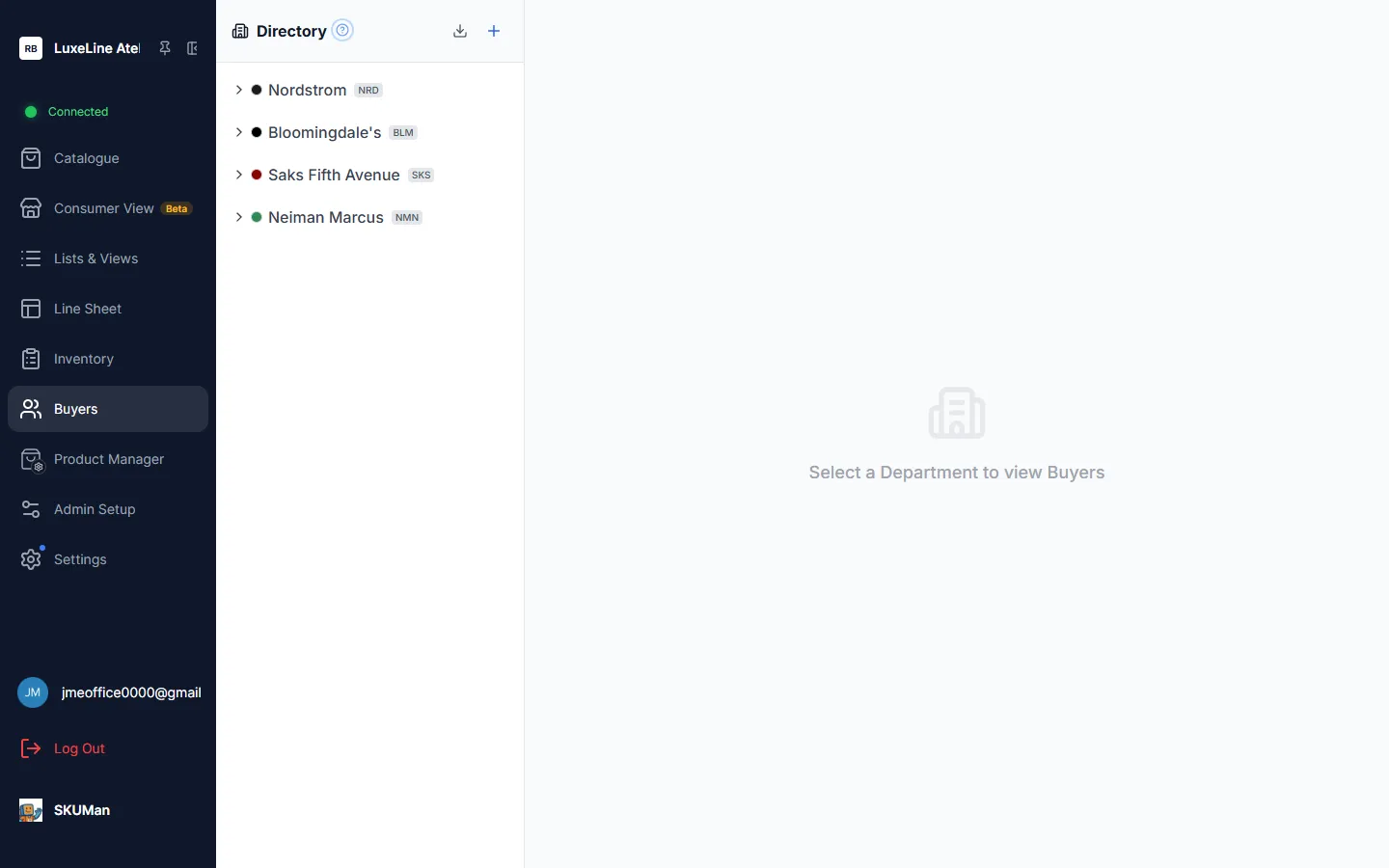
The directory
Section titled “The directory”Open the Buyers module from the main navigation. The Directory panel lists your customer companies, each shown with two markers:
- A colour dot — the company’s brand colour, so accounts are easy to tell apart at a glance.
- A short code — a compact tag (for example
NRDfor Nordstrom,SKSfor Saks Fifth Avenue) used as a shorthand for the company.
Click a company (or its expand arrow) to select it. The area on the right — which starts on “Select a Department to view Buyers” — then shows the buyer contacts that belong to that company, where you can review and manage them.
Setting up and maintaining the directory is part of your workspace configuration and is typically handled by an admin.
Adding a company
Section titled “Adding a company”Use the add (+) button in the Directory header to create a new company. A company carries:
| Detail | What it’s for |
|---|---|
| Name | The customer/department name shown throughout SKUMan. |
| Short code | A brief shorthand tag displayed beside the name. |
| Brand colour | The colour dot in the directory. |
| Logo | An optional company logo (see below). |
Company logos
Section titled “Company logos”Upload a logo for a company to brand your customer-facing output. The logo then appears anywhere SKUMan produces customer-branded output — most notably as the customer logo in the line sheet header/footer designer, and as company branding in SKU Views.
Adding buyers to a company
Section titled “Adding buyers to a company”Select a company to open its buyer list, then add the individual buyer contacts who work for that account. Each buyer belongs to exactly one company, so the directory stays a clean two-level structure: companies on the outside, their buyers within.
Exporting the directory
Section titled “Exporting the directory”The download icon in the Directory header exports your buyer directory so you have an offline copy or can share it. Buyer assignments on products, by contrast, arrive through your product import — see below.
Where buyers show up across SKUMan
Section titled “Where buyers show up across SKUMan”The directory is the foundation; the payoff is everywhere else.
Assigned Buyer on products
Section titled “Assigned Buyer on products”Products can be assigned to one or more buyers, recording which customers a style is meant for. The simplest way to set this in bulk is during a product import: map a Buyer column and SKUMan matches the names to companies in your directory automatically (see Importing & Exporting Data). Once assigned, Assigned Buyer appears as one of the field filters in the catalogue sidebar, so you can narrow the grid to a single customer’s products.
The buyer filter and order history (catalogue)
Section titled “The buyer filter and order history (catalogue)”Separately from the assignment field, the catalogue has a Buyer picker. Choosing a buyer there shows that customer’s order history directly on the product cards and lets you filter by ordered vs. never ordered. The order-history fields you can place on a card include:
| Field | Shows |
|---|---|
| Last Order Date / First Order Date | When the customer last and first ordered the product. |
| Last Order Qty | Quantity on that most recent order. |
| Total Ordered | All-time quantity ordered. |
| Order Count | Number of orders placed. |
| Buyer Open Qty | Quantity still on open order — placed but not yet shipped. |
| Sold (12 wk) | Units sold through in the last 12 weeks. |
| Buyer On Hand | The customer’s current on-hand stock. |
These fields draw on imported sales history, so they require the Inventory module in addition to Buyers. Full details are on the catalogue page.
The Buyer selector on line sheets
Section titled “The Buyer selector on line sheets”Selecting a Buyer for a line sheet does three things at once: the customer’s logo becomes available to the header/footer designer, the buyer-specific sales fields above become available on the sheet’s cards, and best-seller badges reflect that customer. Blank history simply renders blank — a customer with no orders shows empty fields, never a misleading zero.
Best sellers per customer
Section titled “Best sellers per customer”In Inventory & Planning, the Best Seller Status view tracks a YES / MID / NO best-seller rating for each product against each customer, month by month. Those per-customer statuses feed the catalogue’s Best Sellers filter and the best-seller badges on line sheets.
Company chips in Inventory & Planning
Section titled “Company chips in Inventory & Planning”The planning views carry company chips that scope everything — stock, demand, risk counts, sales history — to a single customer, so you can plan one account at a time. See Inventory & Planning.
A note on modules
Section titled “A note on modules”The Buyers module can be turned on or off for your workspace, and the buyer-scoped sales features (order-history card fields, best-seller-by-customer selection) also depend on the Inventory module being enabled. If a buyer picker appears but its fields stay blank, check that both modules are on for your workspace.